How to Deploy a Web App on a VPS with Nginx and Docker
A practical, end-to-end walkthrough to deploy a web app on a VPS with Nginx and Docker on Ubuntu, including HTTPS and keeping it running.


A practical, end-to-end walkthrough to deploy a web app on a VPS with Nginx and Docker on Ubuntu, including HTTPS and keeping it running.

Find your VPS IP, create DNS A and AAAA records, write an Nginx server block, and install a free Let's Encrypt certificate with Certbot and auto-renewal.

VM vs container, explained without the jargon. How each one isolates your app, the speed and security tradeoffs, and how to pick the right one.

Managed or self-hosted? How to choose, compared on cost, maintenance, backups, and uptime, with the honest middle ground and a decision checklist.

IaaS, PaaS, and SaaS in plain terms: what the provider runs, what you run, examples of each, and how to choose the model that fits your project.
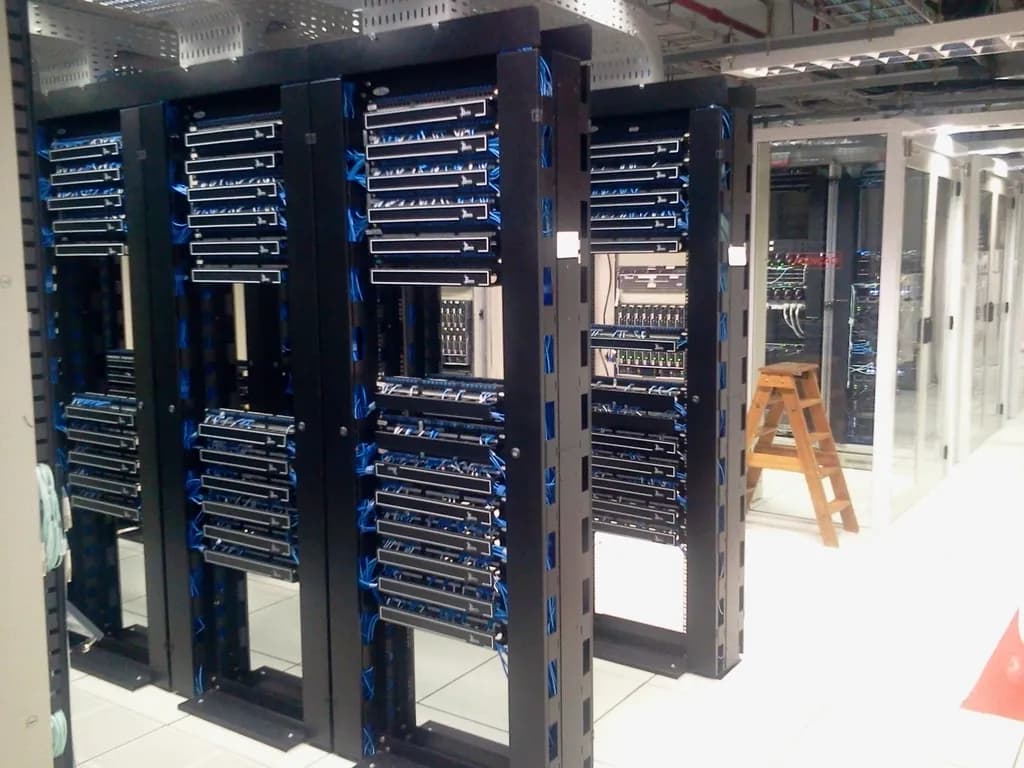
A plain guide to cloud hosting: how your site runs across a pool of machines, how pooled resources and scaling work, and the honest pros and cons.
To deploy a web app on a VPS with Nginx and Docker, you install Docker on an Ubuntu server, run your app in a container listening on a local port, then put Nginx in front as a reverse proxy that forwards public traffic to that container. You point your domain at the server's IP, and you add free HTTPS with Let's Encrypt using Certbot. The whole flow takes about thirty minutes and gives you a clean, repeatable setup you can redeploy with one command.
This guide is a complete walkthrough on Ubuntu. You will set up the server, run the container, configure Nginx, point your domain, and turn on HTTPS. The commands are minimal and current, and every step explains what it does so you can adapt it to your own app. If you are still choosing where to host this, start with how to choose a VPS and which hosting type is best for small websites. For a deeper look at the DNS and certificate side, see how to point a domain to a VPS with SSL.
One honest limitation up front: this is a single-server setup. It is simple, cheap, and fine for most projects, but it is not high availability. If that one server goes down, your site goes down. We will note where that matters at the end.
You need three things in place before the first command: a VPS, a domain, and the ability to log in over SSH. With those, the rest is mechanical. If you are missing any of them, sort that out first, because the later steps assume a server you can reach and a domain you can configure.
Here is the checklist:
ssh youruser@your-server-ip. Key-based login is safer than a password.A note on security before you open ports: enable a firewall and allow only what you need. On Ubuntu, ufw is the simplest option.
sudo ufw allow OpenSSH
sudo ufw allow 'Nginx Full'
sudo ufw enable
The Nginx Full profile opens ports 80 and 443, which is what HTTP and HTTPS use. Note that you allow OpenSSH first, otherwise enabling the firewall can lock you out of your own server.
Install Docker from Docker's official apt repository, not the older docker.io package, so you get current versions and the Compose plugin. The steps add Docker's signing key, register its repository, then install the engine and its tools. Compose ships as a plugin now, so docker compose (two words) is built in once Docker is installed.
First, set up Docker's apt repository. These commands are from Docker's official install docs:
sudo apt update
sudo apt install ca-certificates curl
sudo install -m 0755 -d /etc/apt/keyrings
sudo curl -fsSL https://download.docker.com/linux/ubuntu/gpg -o /etc/apt/keyrings/docker.asc
sudo chmod a+r /etc/apt/keyrings/docker.asc

sudo tee /etc/apt/sources.list.d/docker.sources > /dev/null <<EOF
Types: deb
URIs: https://download.docker.com/linux/ubuntu
Suites: $(. /etc/os-release && echo "${UBUNTU_CODENAME:-$VERSION_CODENAME}")
Components: stable
Architectures: $(dpkg --print-architecture)
Signed-By: /etc/apt/keyrings/docker.asc
EOF

sudo apt update
Then install Docker Engine, the CLI, containerd, and the Buildx and Compose plugins:
sudo apt install docker-ce docker-ce-cli containerd.io docker-buildx-plugin docker-compose-plugin
Confirm it works by running Docker's test image:
sudo docker run hello-world
If you see the "Hello from Docker!" message, the engine is running. To run Docker without typing sudo every time, add your user to the docker group:
sudo usermod -aG docker $USER
newgrp docker
Be aware that the docker group grants root-level access on the host, so only add users you trust. After this, docker run hello-world works without sudo. Check the Compose plugin too:
docker compose version
Run your app as a container that listens on a local port, for example 8080, and keep that port private to the server. Nginx will be the only thing exposed to the public internet, and it will forward requests inward to the container. Binding the container to 127.0.0.1 keeps the app off the public interface entirely.
If you have your own app with a Dockerfile, build the image first:
docker build -t myapp .
Then run it, mapping a local-only host port to the port your app listens on inside the container. Replace 3000 with whatever port your app uses internally:
docker run -d --name myapp --restart unless-stopped -p 127.0.0.1:8080:3000 myapp
What those flags do:
-d runs the container in the background.--name myapp gives it a stable name so you can manage it later.--restart unless-stopped brings it back after a crash or a reboot, which matters for a server you are not watching.-p 127.0.0.1:8080:3000 publishes container port 3000 only to the server's loopback address on port 8080, so it is reachable by Nginx but not from the outside.If you do not have your own app yet and want to follow the rest of the guide, run a minimal static web server in a container instead:
docker run -d --name myapp --restart unless-stopped -p 127.0.0.1:8080:80 nginx:alpine
Confirm the app is responding locally on the server:
curl http://127.0.0.1:8080
You should get HTML back. Check the container is up with docker ps, and read its logs with docker logs myapp if it is not.
For anything beyond one container, write a docker-compose.yml so the configuration lives in a file you can version-control. A small example:
services:
  app:
    build: .
    restart: unless-stopped
    ports:
      - "127.0.0.1:8080:3000"
Then bring it up with docker compose up -d, and down with docker compose down. The advantage is that your whole setup is one readable file, and redeploying is one command.
Install Nginx on the host, then write a small site config that forwards requests for your domain to the container's local port. A reverse proxy is a server that sits in front of your app and passes client requests through to it, which lets Nginx handle the public connection, TLS, and routing while your app stays private.
Install Nginx from Ubuntu's repositories:
sudo apt install nginx
Create a site configuration. Replace example.com with your domain and 8080 with the port you published the container on:
sudo nano /etc/nginx/sites-available/example.com
Paste this:
server {
    listen 80;
    listen [::]:80;
    server_name example.com www.example.com;

    location / {
        proxy_pass http://127.0.0.1:8080;
        proxy_http_version 1.1;
        proxy_set_header Host $host;
        proxy_set_header X-Real-IP $remote_addr;
        proxy_set_header X-Forwarded-For $proxy_add_x_forwarded_for;
        proxy_set_header X-Forwarded-Proto $scheme;
        proxy_set_header Upgrade $http_upgrade;
        proxy_set_header Connection "upgrade";
    }
}
The proxy_pass line is the core of it: every request for your domain is handed to the container on 127.0.0.1:8080. The proxy_set_header lines pass the client's original host, IP, and protocol through to your app, which apps need to build correct links and log visitor addresses. The Upgrade and Connection headers let WebSockets work if your app uses them.
Enable the site by linking it into sites-enabled, remove the default site so it does not shadow yours, then test and reload:
sudo ln -s /etc/nginx/sites-available/example.com /etc/nginx/sites-enabled/
sudo rm -f /etc/nginx/sites-enabled/default
sudo nginx -t
sudo systemctl reload nginx
The nginx -t step checks the configuration for errors before you apply it. Never skip it. If it reports a problem, fix the file and run it again before reloading.
Add a DNS record at your domain registrar that maps your domain to the server's public IP address. DNS is the system that turns a name like example.com into the IP address browsers connect to. Until this record exists and propagates, the domain will not reach your server, and Certbot cannot issue a certificate.
In your registrar's DNS settings, create:
@ (or your root domain) pointing to your server's IPv4 address.www pointing to the same IP, if you want the www version to work.DNS changes can take anywhere from a few minutes to a few hours to propagate. Check that it has taken effect from your own machine:
dig +short example.com
When that returns your server's IP, visit http://example.com in a browser. You should see your app, served over plain HTTP through Nginx. That confirms the proxy and DNS are working before you add encryption. For more on the domain and certificate flow, see how to point a domain to a VPS with SSL.
Use Certbot to get a free certificate from Let's Encrypt and have it configure Nginx for you automatically. Let's Encrypt is a nonprofit certificate authority that issues the TLS certificates browsers trust, at no cost. As of early 2025 it had issued certificates covering well over 500 million domains, according to its own statistics. Certbot reads your Nginx config, requests a certificate for the domains it finds, and edits the config to serve HTTPS.
The maintainers recommend installing Certbot through snap, per the official Certbot instructions:
sudo snap install --classic certbot
sudo ln -s /snap/bin/certbot /usr/local/bin/certbot
Then run Certbot's Nginx integration:
sudo certbot --nginx
It will ask for an email (used for expiry warnings), ask you to agree to the terms, and let you pick which domains to secure from the server_name values in your config. When it finishes, it has added a listen 443 ssl block and a redirect from HTTP to HTTPS. Visit https://example.com and you should see the lock icon.
Certificates from Let's Encrypt last 90 days, so renewal matters. The Certbot package installs a systemd timer that renews automatically before expiry, so you do not have to schedule anything. Confirm the renewal process works without touching your live certificate:
sudo certbot renew --dry-run
If that completes without errors, automatic renewal is set. You can also list the active timer with systemctl list-timers | grep certbot.
Two settings keep this alive without you watching it: a Docker restart policy on the container, and Docker plus Nginx enabled as boot services. With both in place, the server can reboot, lose power, or crash a container, and your site comes back on its own.
You already set the container's restart policy with --restart unless-stopped, which brings the container back after a crash or a host reboot, but leaves it down if you stopped it deliberately. To make sure Docker and Nginx themselves start on boot:
sudo systemctl enable docker.service
sudo systemctl enable containerd.service
sudo systemctl enable nginx
To redeploy a new version of your app later, the loop is short:
docker pull myapp:latest   # or: docker build -t myapp .
docker stop myapp && docker rm myapp
docker run -d --name myapp --restart unless-stopped -p 127.0.0.1:8080:3000 myapp
If you used Compose, it is simpler still: docker compose pull && docker compose up -d rebuilds and restarts only what changed. Either way, Nginx and your certificate stay untouched, because they live on the host and only proxy to whatever container is listening.
This setup is a single server, and that is its strength and its ceiling. Everything runs on one machine: the app, the proxy, the certificate. It is cheap, easy to reason about, and quick to rebuild, which is why it is the right choice for personal projects, side projects, internal tools, and small production sites. The honest tradeoff is that it is not high availability. If that one server fails, the site is down until you fix it or restore it elsewhere, so keep an off-server backup of your code, your Compose file, and any data volumes.
When you outgrow a single box, the next steps are a load balancer in front of two or more app servers, a managed database separated from the app, and health checks that route around a failed node. That is a different article and a different cost. For most apps, you reach it later than you think, and a well-kept single server carries you a long way first.
The best infrastructure tends to be the kind you stop thinking about: efficient, quietly dependable, and priced for what you use. A single, well-configured VPS with Docker and Nginx gets you most of that for the price of one server and an afternoon.