Build a WordPress Website
Complete guide to launching WordPress websites on Carpathian Cloud. Step-by-step console commands for PHP, MySQL, and WordPress setup.
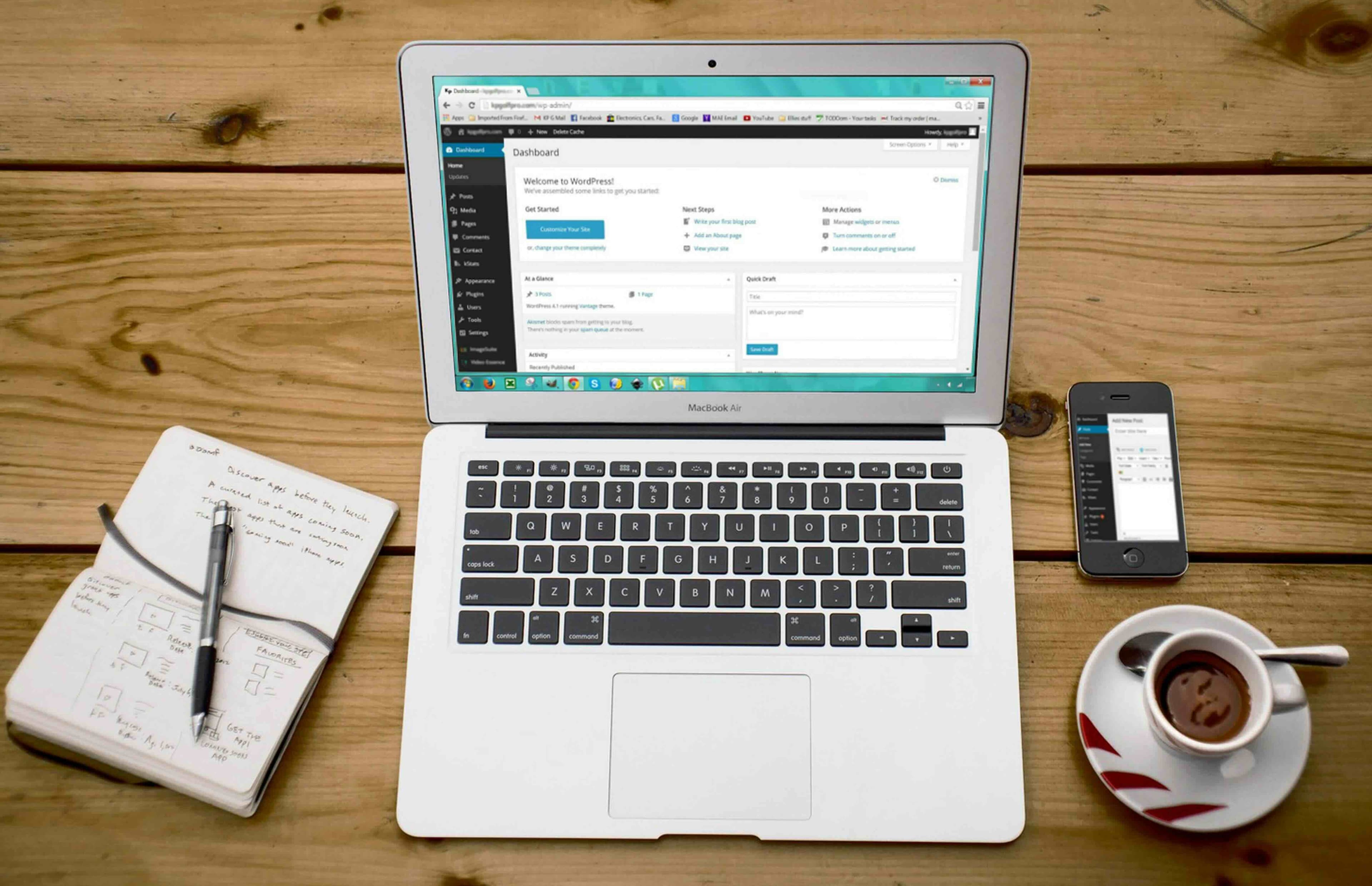
Launch a full-featured WordPress site using your Carpathian Cloud instance with nothing but terminal access. This guide walks you through every step.
1. Provision Your VM
From the Carpathian dashboard:
- Go to Cloud Servers → Provision Server
- Select the Ubuntu Server 22.04 LTS base image
- Once it's finished provisioning, click Networking
- Click "Add Configuration" and ensure you follow the CNAME instructions
- Select the Spark you want to use, add your domain name, and select "Website"
Important Note: When you select Website, Apache2 will be automatically installed.
Once it’s finished, click the Console button to access your server directly on the Cloud Servers tab.
2. Remove Apache2
Disable Apache2 to avoid conflicts with the gateway:
systemctl stop apache2
systemctl disable apache2
apt remove -y apache2 apache2-utils apache2-bin apache2.2-common
3. Update the System
Update the server and install basic tools:
apt update && apt upgrade -y
apt install -y unzip curl git ufw
4. Install PHP
WordPress requires PHP and extensions:
apt install -y php-fpm php-mysql php-cli php-curl php-gd php-mbstring php-xml php-zip
Check PHP is working:
php -v
5. Install MySQL
Install MySQL server:
apt install -y mysql-server
Run the security script:
mysql_secure_installation
Then log in and set up the WordPress DB:
mysql -u root -p
Inside the MySQL shell:
CREATE DATABASE wordpress;
CREATE USER 'wpuser'@'localhost' IDENTIFIED BY 'strongpassword';
GRANT ALL PRIVILEGES ON wordpress.* TO 'wpuser'@'localhost';
FLUSH PRIVILEGES;
EXIT;
6. Download and Configure WordPress
Download the latest version:
cd /var/www
curl -O https://wordpress.org/latest.tar.gz
tar -xvzf latest.tar.gz
rm latest.tar.gz
Copy and edit the config:
cp wordpress/wp-config-sample.php wordpress/wp-config.php
nano wordpress/wp-config.php
Set your DB values:
define( 'DB_NAME', 'wordpress' );
define( 'DB_USER', 'wpuser' );
define( 'DB_PASSWORD', 'strongpassword' );
7. Set File Permissions
chown -R www-data:www-data /var/www/wordpress
chmod -R 755 /var/www/wordpress
8. Register Your Site
Since your domain is already routed by Carpathian's public gateway:
- Open your browser and go to your assigned domain (or IP)
- You should see the WordPress install screen
- Complete the setup: site name, username, password, etc.
You now have a secure, routed, and fully functional WordPress site running inside your Carpathian Cloud Environment.
Carpathian’s infrastructure automatically handles:
- TLS termination
- Public routing and port forwarding via gateway VMs
- Test page validation to confirm domain reachability
To customize NGINX headers or caching, please reach out to support.
This documentation is open to the public to make the platform API available for customers. However, since Carpathian Cloud is still in beta and being actively developed, this document might be outdated or incorrect. If you find anything confusing or misleading, please send an email to info@carpathian.ai.